The Shopping List, explained
By Nicoletta· Published 6/12/2026
How Pokopia Companion turns your build queue, your saved houses, and your pinned kits into one focused gathering trip.
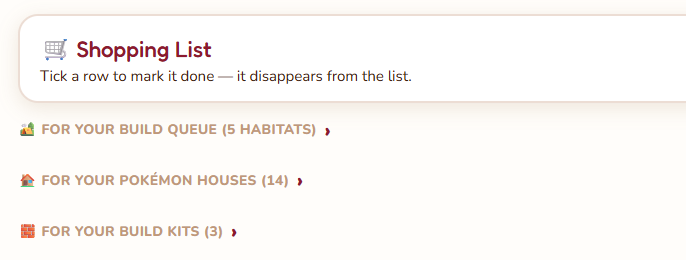
The Shopping List is the page where everything you "need to gather" comes together in one place. Open it, and you see exactly what to pick up the next time you're playing, instead of bouncing between five tabs trying to remember.
It's split into three sections, each with a different source. All three start collapsed so the page stays calm; tap a section to expand it.
Section 1: For your build queue
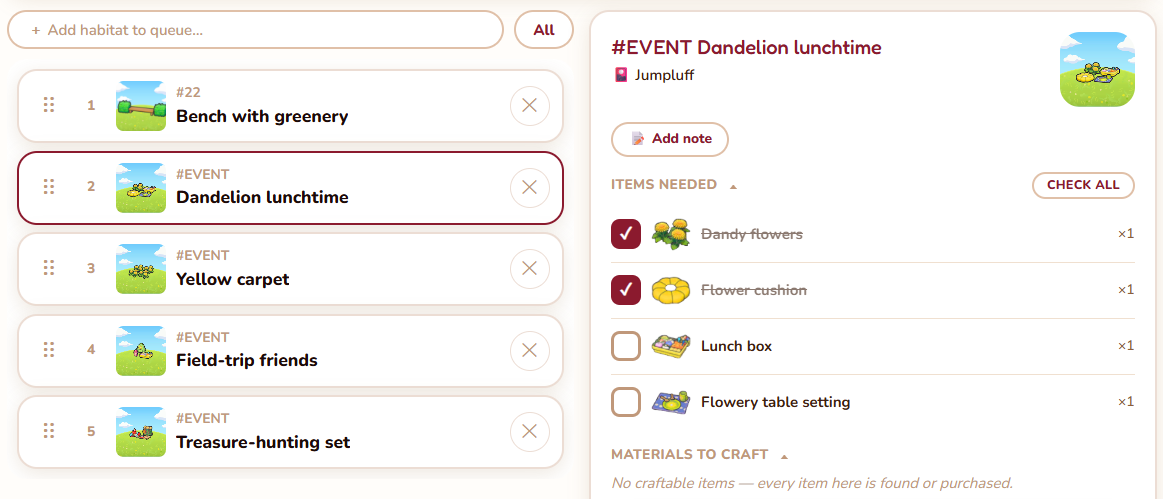
This one is automatic. Every habitat you've queued up in the Build queue contributes its unchecked items and crafting materials here. As you tick rows off (either here or inside the Build queue itself), they disappear from the list.
Each habitat is its own block, and the block shows:
- A row per item or material that's still unchecked
- A small "mat" badge on crafting materials so you can tell at a glance whether you need to find it or craft it
- A "Check all" button if you've already built the habitat in-game and just want to clear it
- An "Open in build queue" jump button that drops you straight onto that habitat
A habitat with nothing unchecked left disappears from this section on its own. You never have to clean it up.
Section 2: For your Pokémon houses
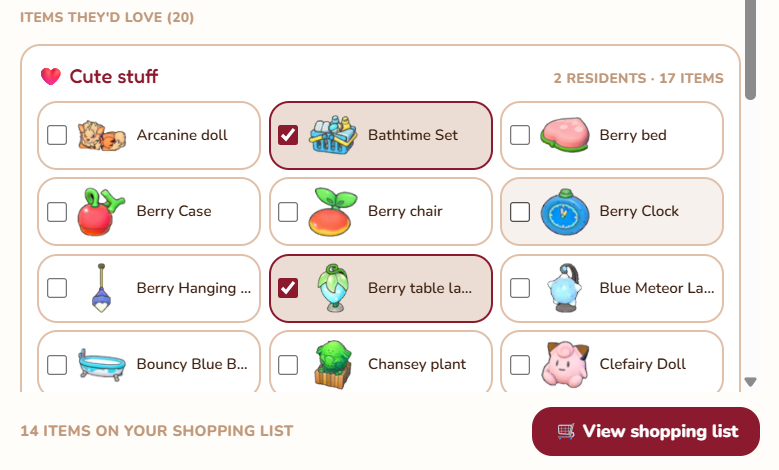
This one is curated by you. Every time you open a saved house from My Houses and tick an item the recommendation engine suggests for it, that item lands here, grouped under the house that recommended it.
Each house block shows:
- The house name, area, and the resident Pokémon sprites
- The items you've ticked
- A "Materials needed" rollup at the bottom of each house, breaking those items down into the crafting materials they share
The materials rollup is per-house on purpose. Earlier versions aggregated materials across every house at once, but "X total Wood across all your houses" doesn't help when you're farming for one specific build. Per-house is what the rollup answers: "what do I need to craft for THIS house, right now?"
"Other items"
If a slug is in your wishlist but no current house recommends it (you deleted a house, or changed its residents), it lands in an "Other items" block at the bottom of this section. That way you can still see and clear it. The section header also shows "N stale entries hidden" if there are any. Nothing is silently lost.
Section 3: For your build kits
This section mirrors the build queue one, but for kits you've pinned on the Build Kits page. Pin a kit, and its ungathered materials show up here. Tick them off and they vanish.
Each kit block shows:
- The pinned kit's name and "N left" count
- One row per material still to gather
- A "Check all" bulk action
- An "Open in build kits" jump that deep-links straight to that kit
What syncs across devices, and what doesn't
This matters if you bounce between your phone, your tablet, and a laptop:
- Your Pokémon houses wishlist (Section 2) syncs across devices via your account.
- Your pinned kits and gathered materials (Section 3) sync across devices via your account.
- Habitat checkmarks (Section 1) live in this device's storage and stay local. If you tick items on your phone, they won't be ticked on your laptop. That's deliberate: the build queue is a per-device working surface.
If you're signed out, none of it syncs. Sign in once and the cross-device pieces just start working.
A small tip
You don't have to expand sections you're not actively using. If you only care about your build queue today, leave the Houses and Kits sections collapsed and the page stays scannable. When you start a new house build later in the week, that's when you open Section 2.
The whole point of this page is to turn "what do I need?" into one focused trip. Everything else is just keeping it organised.